Buses
Buses are used to “collect” audio signals from other tracks to treat them together in the mix. Since in Sequoia each track corresponds to a mixer channel, a bus is also initially a normal track with all the properties of a normal track, i.e. it can accommodate track effects and be automated, has an output and an input. But beyond that, there are differences.
-
AUX buses: An AUX bus differs from a normal track in that you can send the audio signal from any track to this AUX bus. To do this, use the AUX-Send slider in the mixer.
AUX buses are mostly used for effects like reverb or echo, when they are to be used by multiple tracks at the same time. For this purpose, a signal portion from the corresponding track is sent to the AUX bus (“AUX Send”) and effects are applied in the AUX bus. The volume fader of the AUX bus represents "AUX Return".
-
Submix buses: A Submix bus differs from a simple track in that any track can be routed to this bus rather than to the master or an output device.
A Submix bus thus combines several tracks. Volume, panning and effects processing can thus be done for all tracks routed to the Submix bus together in this bus. For example, you can combine all drum tracks into one Submix bus, so that the entire drum kit can then be controlled via the volume control of the Submix bus.
With menu Track > Track type or the Track options dialog each track can also be configured as AUX or Submix bus or even both.
Since a bus represents a normal track in the project window, this track can also contain objects. Normally you will not place objects in a bus yourself, but they will be created, for example, if you freeze the bus.
To prevent you from accidentally placing objects on a bus track, buses are created as locked by default. 
So, since you usually don't need these tracks in the arranger, to save space you can hide them in the arranger with the command Menu View > Hide Submix/AUX buses.
Attention: This function hides the bus tracks even if they are set to visible in the Track Manager in the column Arrangement.
For the surround mix there are other bus types:
-
Surround bus: A surround bus is equivalent to a standard submix bus with surround functionality. All tracks routed to a surround bus use the Spatial Panner instead of the standard pan control, which allows you to adjust the surround position of that track's output signal. When creating a surround bus, the Surround setup dialog opens, where you can specify the surround format for the bus.
Technically, the Surround master is also such a surround bus, which has the additional property of assigning the surround channels to the audio outputs and cannot itself be routed to a Surround bus.
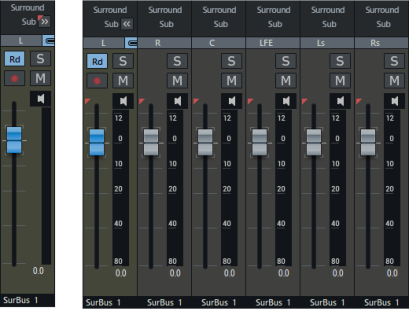
The individual channels of a Surround bus are normally hidden, by clicking on Sub >> they can be displayed. If you disable the link button
 , you can also set the channels separately.
 -
Surround AUX bus: If a surround master is available in the project, an AUX bus can also be created as a surround AUX bus. A surround AUX bus allows you to incorporate surround effects. The surround panning of a track’s surround AUX send is linked by default to the track’s surround panning, but can also be adjusted independently.
Creating AUX buses and Submix buses
To create an AUX bus, select Insert New Track > New AUX bus from the Track menu. You can also create a new AUX bus by dragging an AUX send control of a previously unused slot in the AUX section of the Track Editor or Mixer. This creates a new AUX bus automatically. New AUX buses are always inserted at the far right of the mixer before the masters, after existing AUX buses.
To create a Submix bus, select Insert New Track > New Submix bus from the Track menu. The Submix bus is generated directly after the selected channel.
The Mixer setup dialog lets you quickly add multiple buses to the project at once.
In this section